Customers Invoices Kanban view
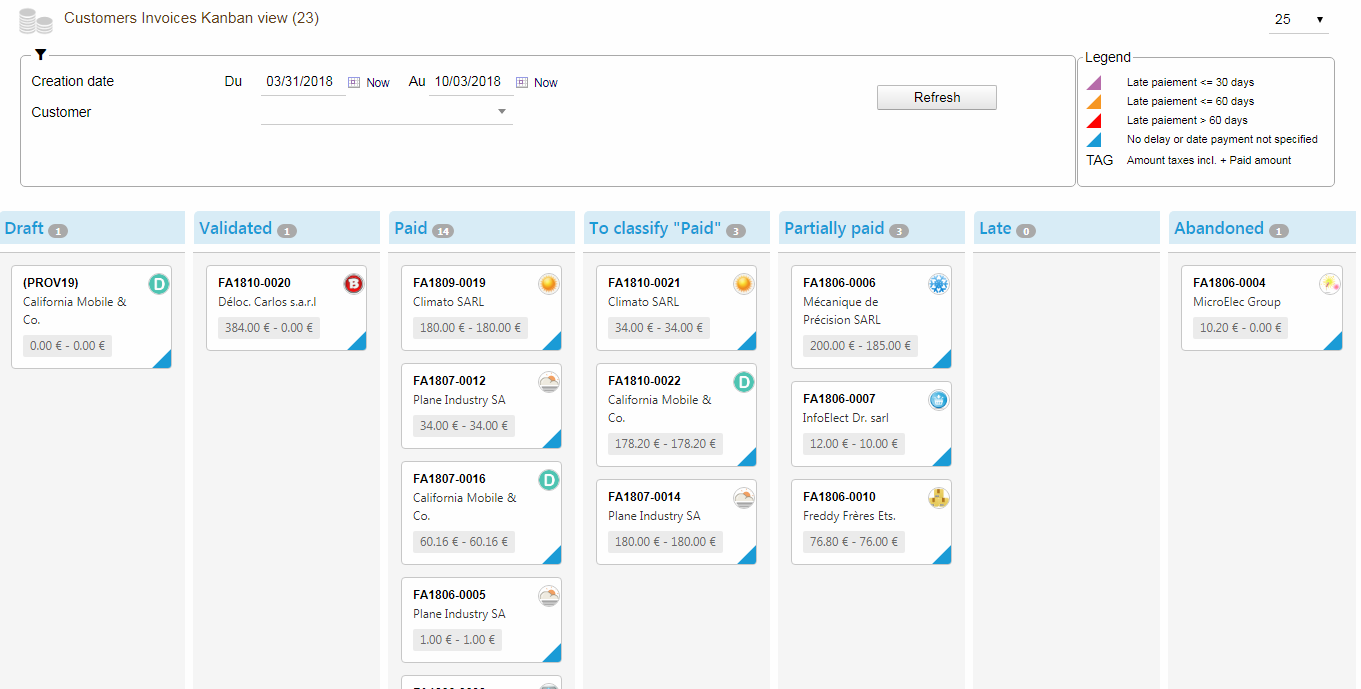
Columns
Possible states for Invoices are:
- Drafts
- Validated
- Paid
- To classify paid
- Partially paid
- Late (payment)
- Abandoned
Stock management
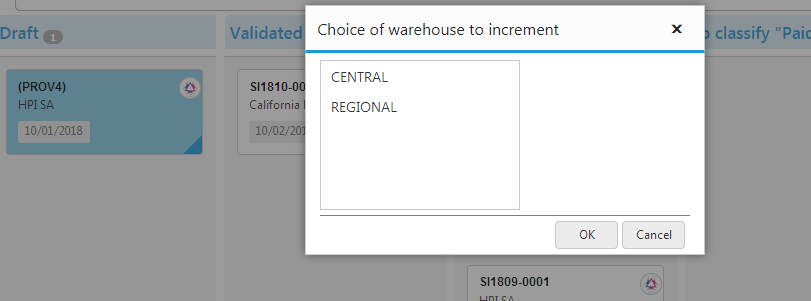
If the “Stock” module is activated in your Dolibarr and if the option “Decrease physical stocks on validation of invoices” is set to “Yes ” then you will be prompted to choose the warehouse when you try to drag and drop from the “Drafts” column to the “Validated” column:
Classify “Abandoned”
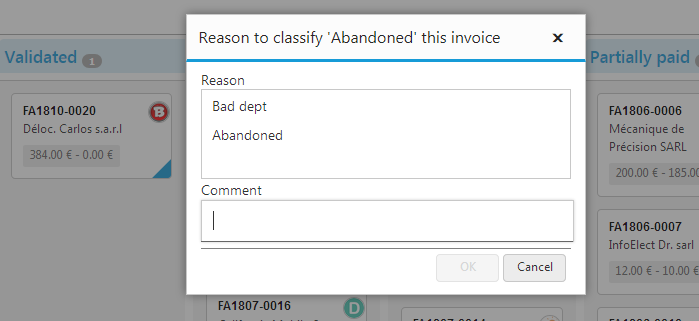
If you drag and drop from the “Validated” or “Late” column to the “Abandoned” column, you will be prompted for the reason to classify “Abandoned” this invoice and enter an optional comment:
Classify “Paid”
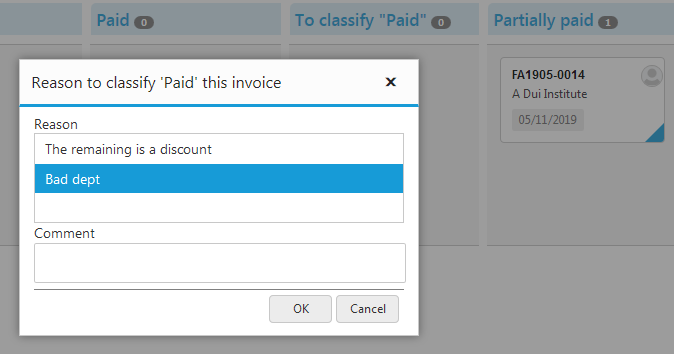
If you drag and drop from the “Partially Paid” column to the “Paid” column, you will be prompted to specify the reason for classifying “Paid” this invoice and entering an optional comment:
Parameters
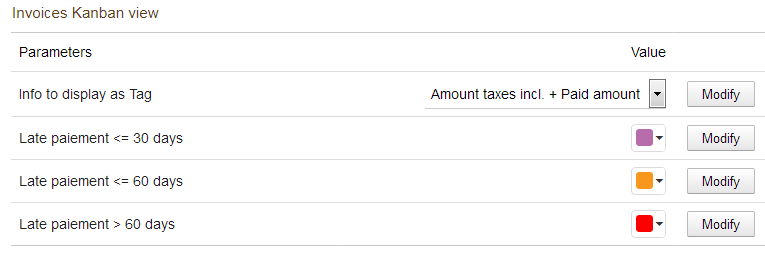
Tags
Possible tags for Kanban Invoices are:
- Invoice Date
- Payment deadline
- Amount vat incl. + Paid amount
- Remaining amount
Colors
The colors in the lower right corner for the Kanban Invoice cards represent the states:
- Late payment <= 30 days
- Late payment <= 60 days
- Late payment > 60 days