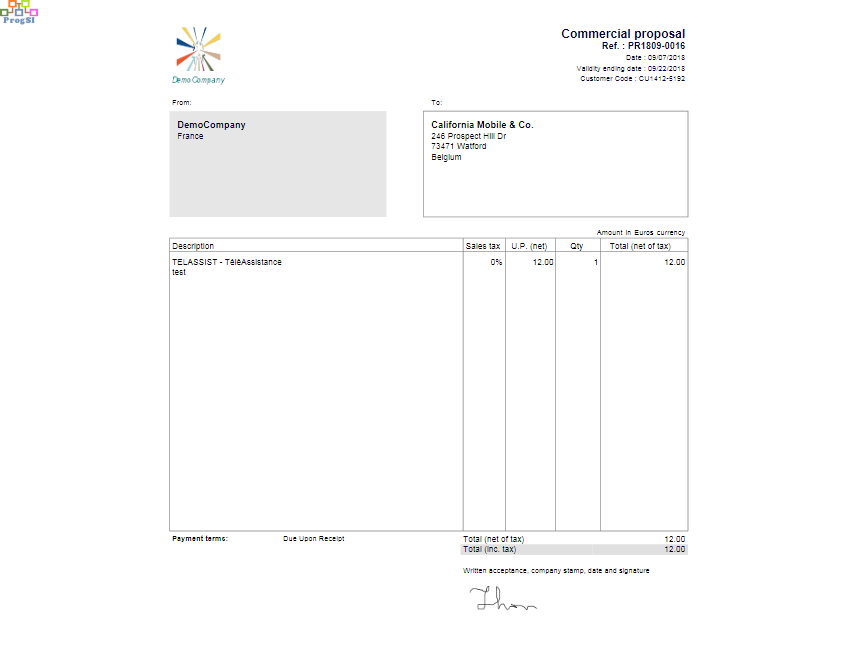
Propal signing and pdf generation
To sign a propale with the AzurSign module:
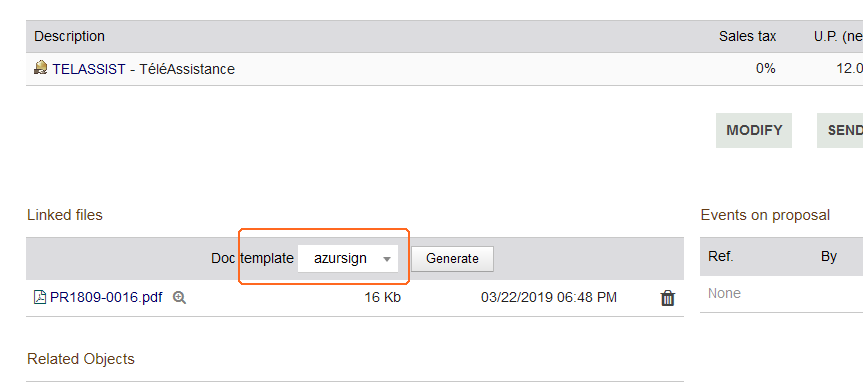
- Open the propal card (must be in “Validated” state)
- Choose the model “azursign” in the list of document templates.
- Click on “Generate”
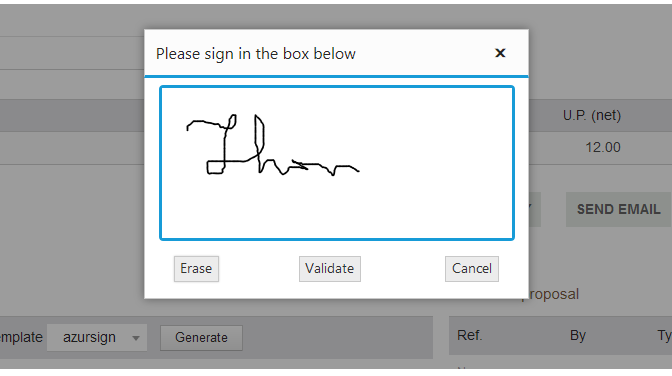
- In the dialog that appears, invite your client / prospect to sign in the box provided for this purpose.
- Click on “Validate”
- AzurSign will generate the pdf and integrate in it the signature of your client / prospect.
- If the global setting of the module “Mark as Signed …” is set to Yes, the propale will be closed as “Signed” by AzurSign.
In this case, if you try to regenerate the pdf with the model “azursign”, it behaves like the model “azur” (a “warning” icon is displayed next to the “Generate” button to signify it).
To be able to reenter the signature to your customer / prospect, it will be necessary to reopen the propal.