How it works
After installing and activating the KanProspects module, click on the top menu “Third Party”.
You will then notice that a new entry “Kanban” has been added to the left menu under “List of prospects”:
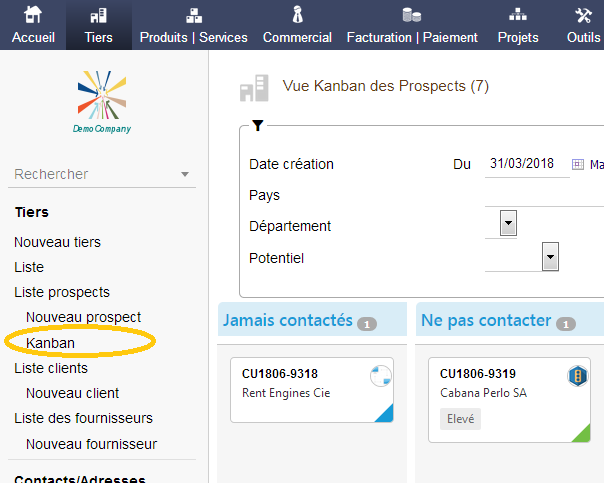
By clicking on this “Kanban” entry, the Kanban prospect view is displayed:
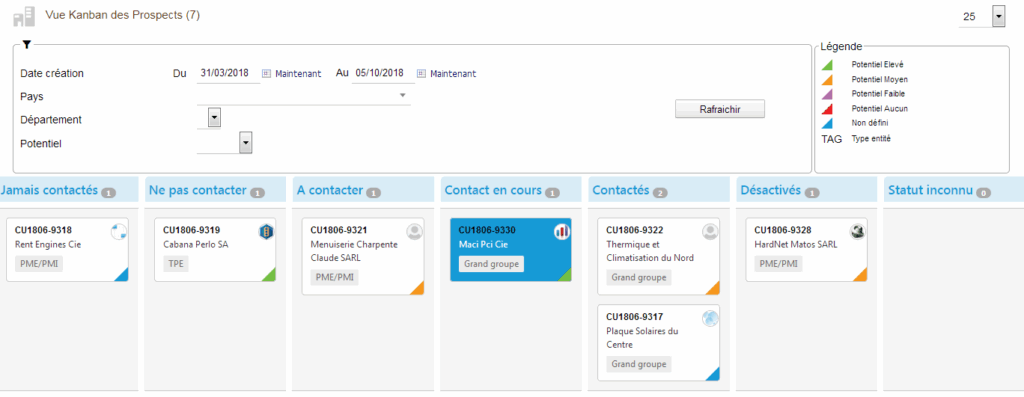
As you can see, the “Kanban” view is divided into 3 areas:
- Filter area
- Legend area
This area summarizes your choices of settings made in the module configuration page. - Kanban area In this area :
Each card represents a prospect.
Each column represents a state of prospects.
You can move a prospect from one state to another by dragging and dropping the card.
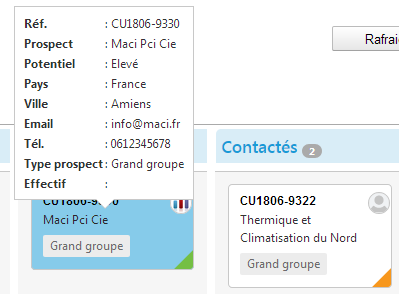
By clicking on any card, the tooltips are activated on all the cards, these tooltips give additional information on the prospect: