Screen zones
Screen zones
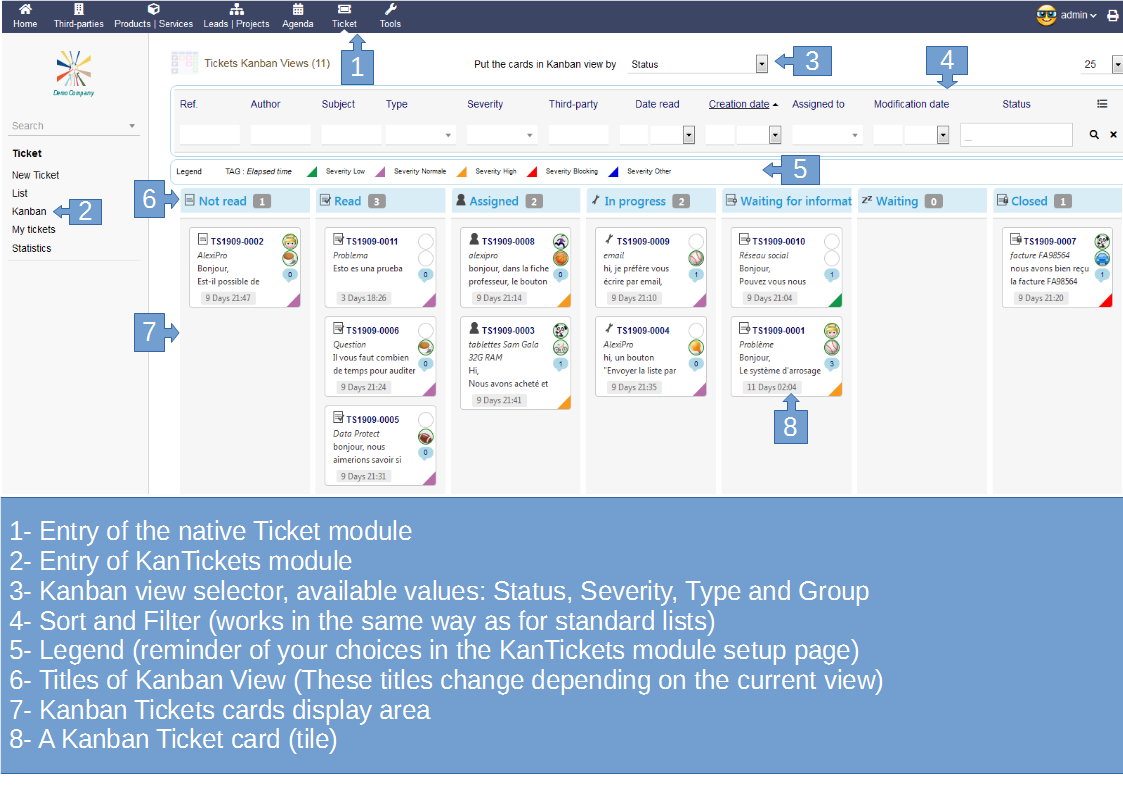
The Kanban views of the Tickets have different areas as shown in the following figure:
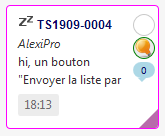
Ticket Kanban tile
Zones
Each kanban tile itself has a number of zones:
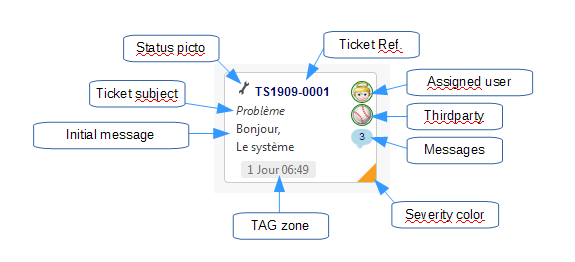
- “Ticket Ref”: a click on this area opens the Dolibarr ticket card.
- “Assigned user”: a click on this picto opens the Dolibarr card of the user.
If the ticket does not have an assigned user, this box displays an empty gray circle - “Thirdparty”: a click on this picto opens the Dolibarr card of the thirdparty.
If the ticket does not have an associated thirdparty, this box displays an empty gray circle - “Messages”: Displays the number of messages in the ticket. A click on this picto opens the dialogue of Messages management
- “Color severity”: This color depends on the setting in the module configuration page
- “Tag”: this area displays the information that has been set in the module configuration page
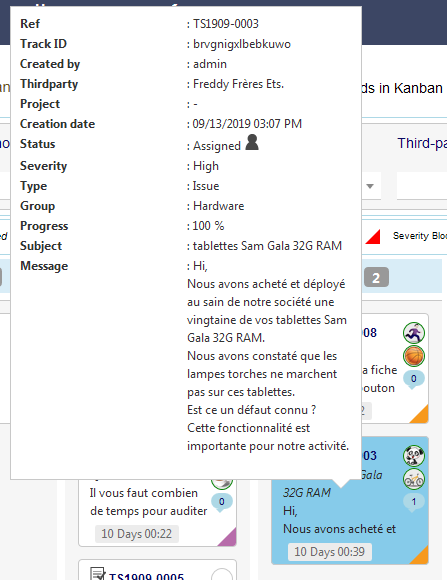
Tooltips
Tooltips kanban cards are not enabled by default to not interfere with navigation.
To activate them, simply click on any kanban card, the tooltips are then activated for all the cards of the page.
The tooltip resumes, roughly, all the information on the ticket concerned.
Drag & Drop
To change the status of a ticket, simply drag & drop the Kanban ticket tile from one column to another.
Depending on the Dolibarr business rules and / or current user permissions, a Drop may fail.
If the Drop is successful, the Kanban tile just moved is surrounded by a magenta border for easy identification.